
Creating a Reusable Function
Steps to create a Reusable Function
- Open the Functions panel from the left sidebar
- Click the + button to create a new function

In the configuration panel, you can define:
- Function name - A descriptive name for your function
- Folder - Organize functions into folders (optional)

- Props - Define parameters that can be passed to the function
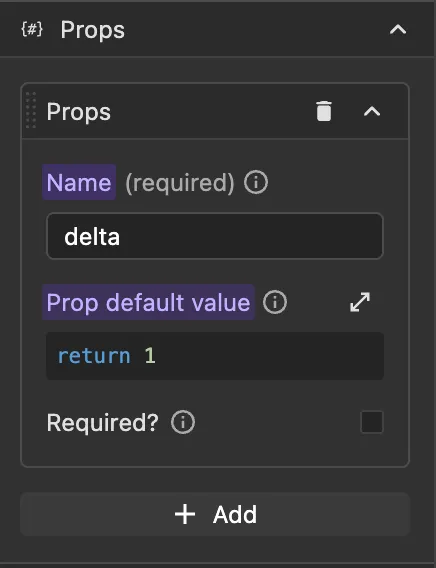
- Function code - Write the JavaScript code that will execute

Defining the Function Name
Give your function a clear, descriptive name that indicates its purpose. For example:
validate_emailformat_currencyformat_dateget_relative_date
Function names should follow JavaScript naming conventions (camelCase or snake-case is recommended)
Organizing with Folders
Functions can be organized into folders to keep your project structured, especially when working with many functions. You can:
- Create new folders from the Functions panel
- Assign functions to existing folders
- Move functions between folders
Writing Function Code
The function code editor provides a full JavaScript environment with:
- Access to all Wized data store variables (
v,c,i,r,f, etc.) - Access to function props via the
pvariable - Full JavaScript syntax support with async/await
- Autocomplete and IntelliSense
Example: Simple Function
javascript
// A function to format a price
const formatted = new Intl.NumberFormat('en-US', {
  style: 'currency',
  currency: 'USD',
}).format(p.amount);

return formatted;
Best Practices
- Keep functions focused - Each function should have a single, clear purpose
- Use descriptive names - Make it obvious what the function does
- Document complex logic - Add comments to explain non-obvious code
- Define appropriate props - Make functions flexible by accepting the right parameters
- Handle errors - Use try/catch blocks for operations that might fail
- Return values - Always return meaningful values that can be used by the caller