
Function Props
Function props are parameters that enable you to pass dynamic values into reusable functions. By defining props, you can make a single function adaptable to many different scenarios, eliminating the need to write duplicate code.
Props make functions truly reusable by allowing callers to customize their behavior with specific input values.
Defining Props
To define props for a function:
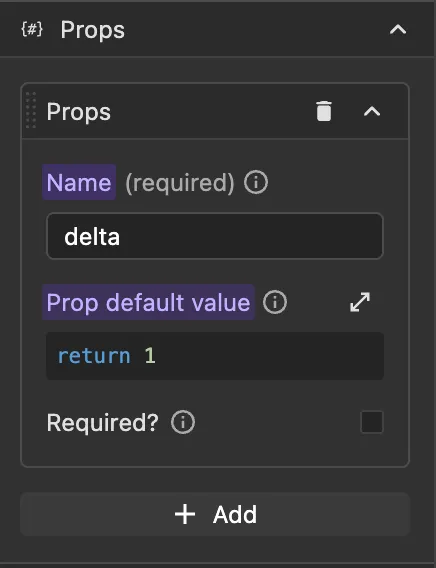
- Open the function configuration
- Navigate to the Props section
- Click the
+icon to add a new prop - Configure each prop with:
- Name - The identifier used to access the prop value (e.g.,
email,userId,amount) - Default value - Optional default value if no value is provided by the caller
- Required - Whether the prop must be provided when calling the function
- Name - The identifier used to access the prop value (e.g.,
Example: Defining Function Props
Consider a function named sendEmail that sends an email notification.
Here, we define several props:
recipientEmail(required) - The email address to send tosubject(required) - The email subject linemessage(required) - The email body contentpriority- Optional, defaults to'normal'
// Inside the function, props are accessed via the 'p' variable
const emailData = {
  to: p.recipientEmail,
  subject: p.subject,
  body: p.message,
  priority: p.priority || 'normal',
};

// Send the email using a request
const response = await r.sendEmailRequest.trigger({
  data: emailData,
});

return response;
Accessing Props in Function Code
Props are always accessed through the p variable in your function code:
// Single prop access
return p.userName;

// Multiple props
const fullName = `${p.firstName} ${p.lastName}`;

// In conditionals
if (p.isAdmin) {
  // Admin-specific logic
}
Passing Props When Calling Functions
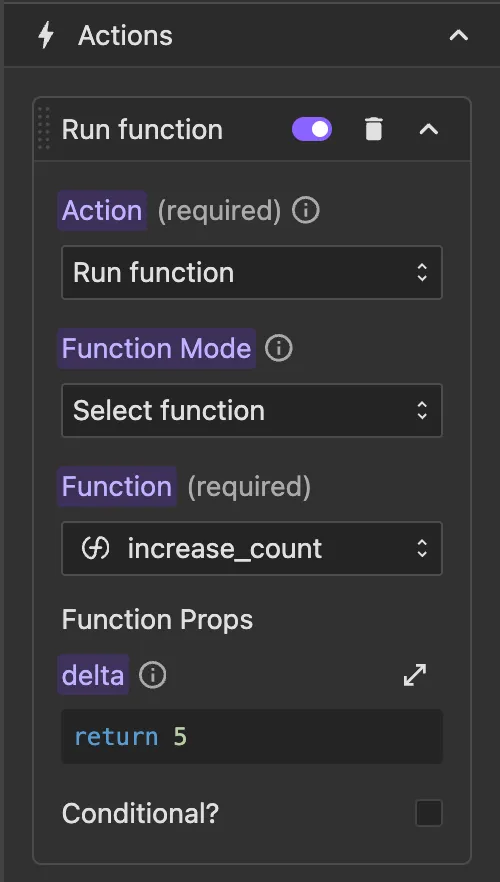
When you select a reusable function in an event or workflow action, Wized automatically displays input fields for each defined prop.
In Global Events or Element Events
- Set the Function Mode to "Select function"
- Choose your function from the Function dropdown
- The Function Props section appears with fields for each prop
- Enter values or use the function editor to pass dynamic values
In Workflow Nodes
Same as events - after selecting the function, configure each prop value in the automatically generated fields.
In Other Functions
You can call one reusable function from another. However, when doing this, you write the call inline rather than using the configurator interface:
// Calling another function from within a function
// Note: This would require using the Wized JavaScript API
const result = await Wized.functions.increaseCount({
  delta: 5,
});

return result;